Category: Experiments

  • Delaunay image triangulation

    Delaunay image triangulation

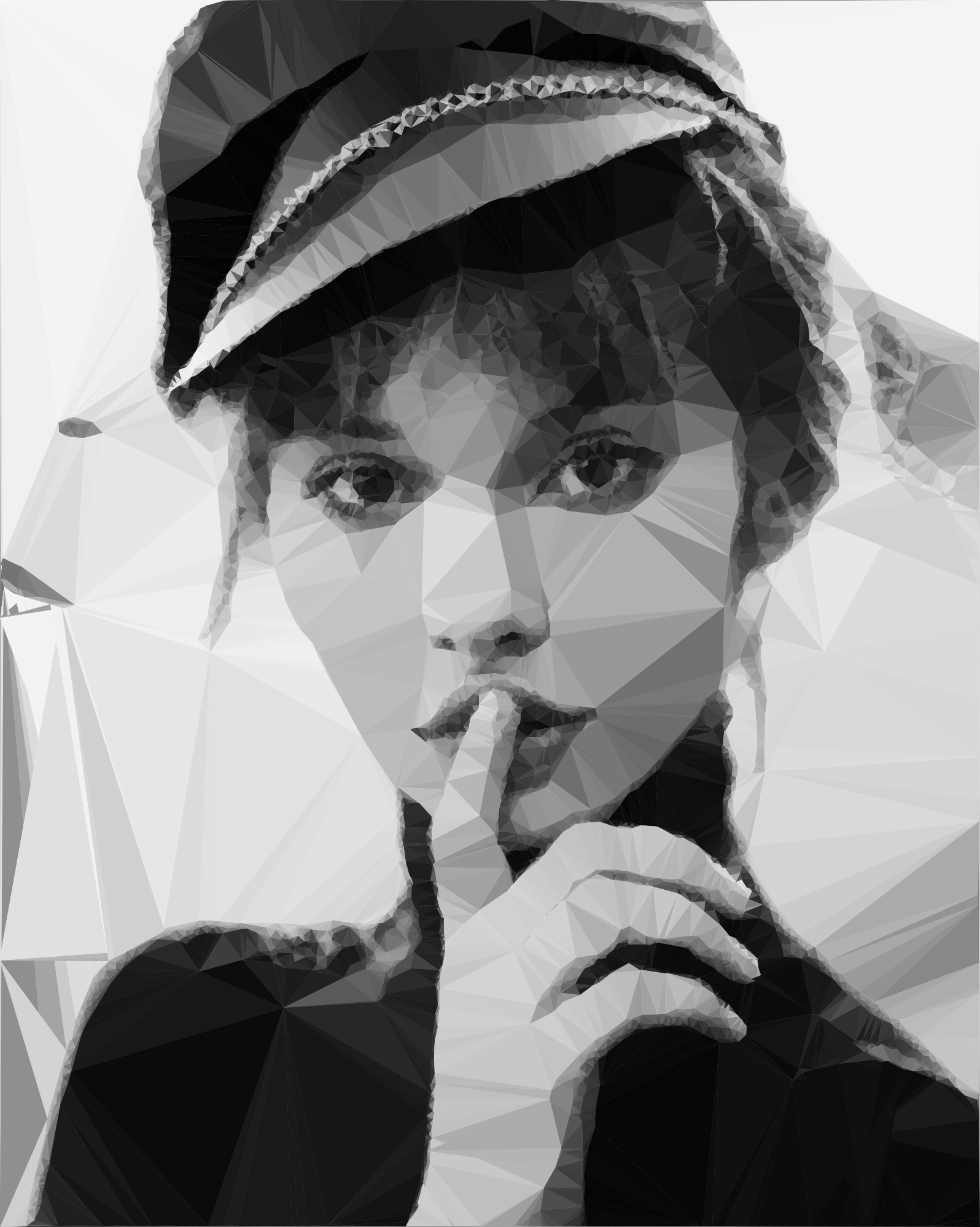
    In this article we present a technique to triangulate source images, converting them to abstract, someway artistic images composed of tiles of triangles. This will be an attempt to explore the fields between computer technology and art.
    But first, what is triangulation? Simply spoken a triangulation partitions a polygon into triangles which allows, for instance, to compute the area of a polygon and execute some operations on the computed polygon surface. In other terms the triangulation might be conceived as a geometric object defined by a point set, but what differentiates the polygons from a point set is the latter does not have an interior, except if we treat the point set as a convex hull/polygon. But to think of a point set as a convex polygon, the points from the interior of the convex hull should not be ignored completely. This is what differentiates the Delaunay triangulation from the other triangulation techniques.
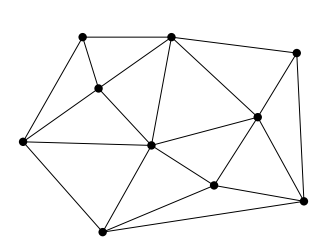
    Fig.1: Point set triangulation.

    Delaunay triangulation

    Wikipedia has a very succinct definition of the Delaunay triangulation:

    … a Delaunay triangulation (also known as a Delone triangulation) for a given set P of discrete points in a plane is a triangulation DT(P) such that no point in P is inside the circumcircle of any triangle in DT(P)

    The circumcircle of a triangle is the unique circle passing through all the vertices of the triangle. This will get valuable meaning in the following. So considering that we have a set of six points we can obtain a triangulated polygon by tracing a circle around each vertex of the constructed triangle in such a manner that the circumcircle of all five triangles are empty. We also say, that the triangles satisfy the empty circle property (Fig.2).
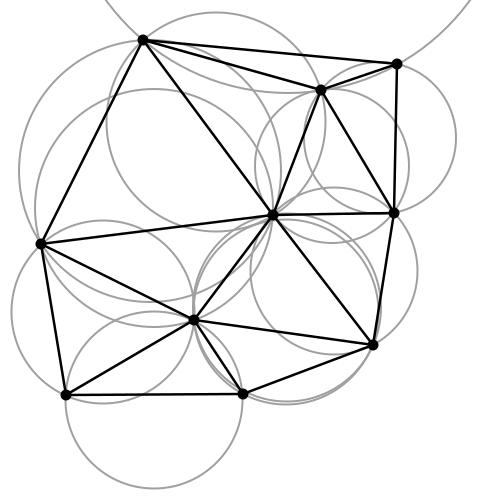
    Fig.2: All triangles satisfy the empty circle property.

    After a short theoretical introduction now we want to apply this technique to a more practical but at the same time aesthetical field, concretely to transform a source image to it’s triangulated counterpart. Having the basic idea and it’s theoretical background we can start to construct the basic building blocks of the algorithm.

    Above all a short notice: we use Go as programming language for the implementation. First, because it has a very clean and easy to use API, second because it can be well suited for a CLI based application, which single scope is to convert an input file to a destination object.

    The algorithm

    Now into the algorithm. As the basic components are triangles we define a Triangle structs, having as constituents the nodes, it’s edges and the circumcircle which describes the triangle circumference.

    
    type Triangle struct {
          Nodes  []Node
          edges  []edge
          circle circle
    }
    

    Next we create the circumscribed circle of this triangle. The circumcircle of a triangle is the circle which has the three vertices of the triangle lying on its circumference. Once we have the circle center point we can calculate the distance between the node points and the triangle circumcircle. Then we can calculate the circle radius.

    We can transpose this into the following Go code:

    The question is how do we get the triangle points from the input image? To obtain a large triangle distribution on the image parts with more details we need somehow to analyze the image and mark the sensitive information. How do we do that? Sobel filter operator on the rescue. The Sobel operator is used in image processing to detect image edges. It’s working with an energy distribution matrix to differentiate the sensitive image informations from the less sensitive ones.
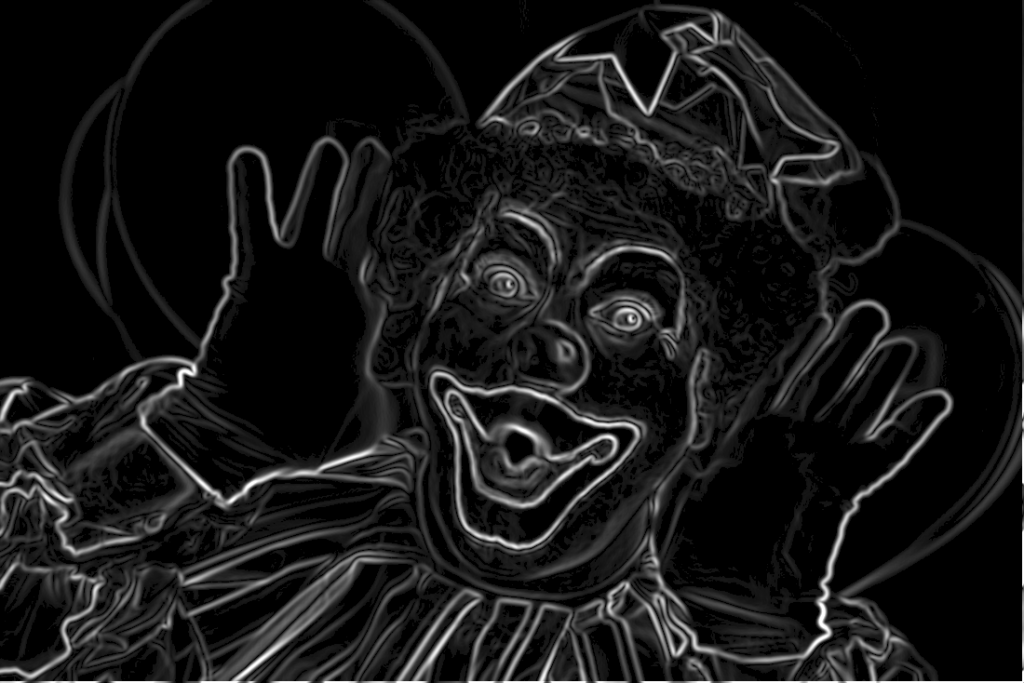
    Fig.3: Sobel operator applied to the source image.

    Once we obtained the sobel image we can sparse the triangle points randomly by applying some threshold value. At the end we obtain an array of randomly distributed points, but these points are more dense on the sensitive image parts, and scarce on less sensitive ones.

    Having the edge points we check whether the points are inside the triangle circumcircle or not. We save the triangle edges in case they are included and carry over otherwise. Then in a loop we search for (almost) identical edges and remove them.

    Now that we have the nodes, in order to construct the triangulated image, the last thing we need to do is actually to draw the lines between nodes points by applying the underlying image pixel colors. The way we can achieve this is to loop over all the nodes and connect each edge point.

    By tweaking the parameters we can obtain different kind of results. We can draw only the line strokes, we can apply different threshold values to filter out some edges, we can scale up or down the triangle sizes by defining the maximum point limit, we can export only to grayscale mode etc. The possibilities are endless.
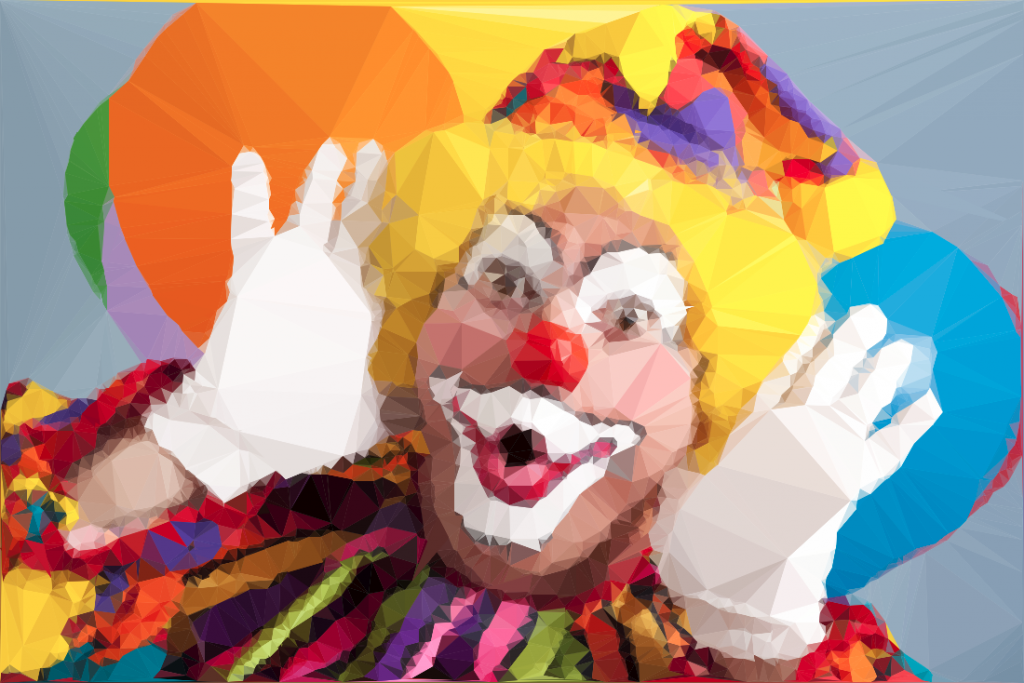
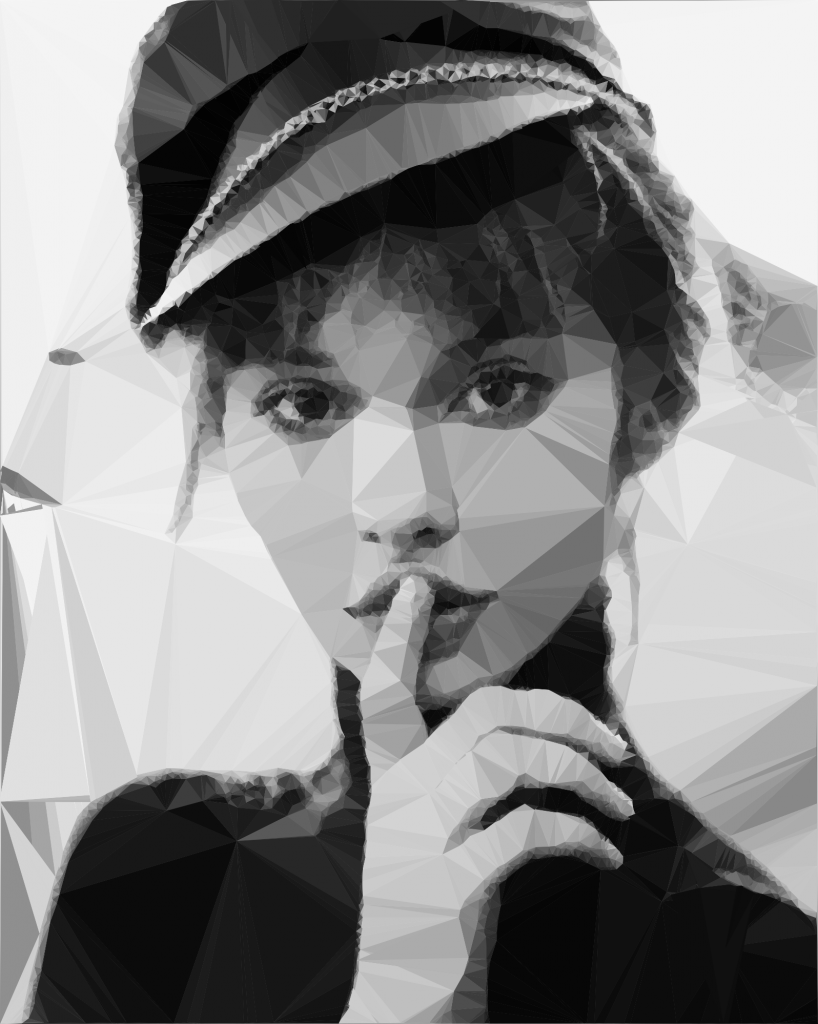
    Fig.4: Triangulated image example.

    Using Go interfaces to export the end result into different formats

    By default the output is saved to an image file, but using interfaces, the Go way to achieve polymorphism, we can export even to a vector format. This is a nice touch considering that using a small image as input element we can export the result even to an svg file, which lately can be scaled up infinitely without image loss and consuming very low processing footprint.

    The only thing we need to do is to declare an interface having a single method signature. This needs to be satisfied by each struct type implementing this method.

    In our case we need two struct types, both of them implementing the same method differently. For example we could have an image struct type and an svg struct type declared in the following way:

    Each of them will implement the same Draw method differently.

    Expose the algorithm as an API endpoint

    Having a good system architecture, coupled with Go blazing fast execution time and goroutines (another feature of the Go language to parallelize the execution) the algorithm can be exposed to an API endpoint in order to process a large amount of images and then make it accessible through a web application.

    The source code can be found on my Github page:

    https://github.com/esimov/triangle

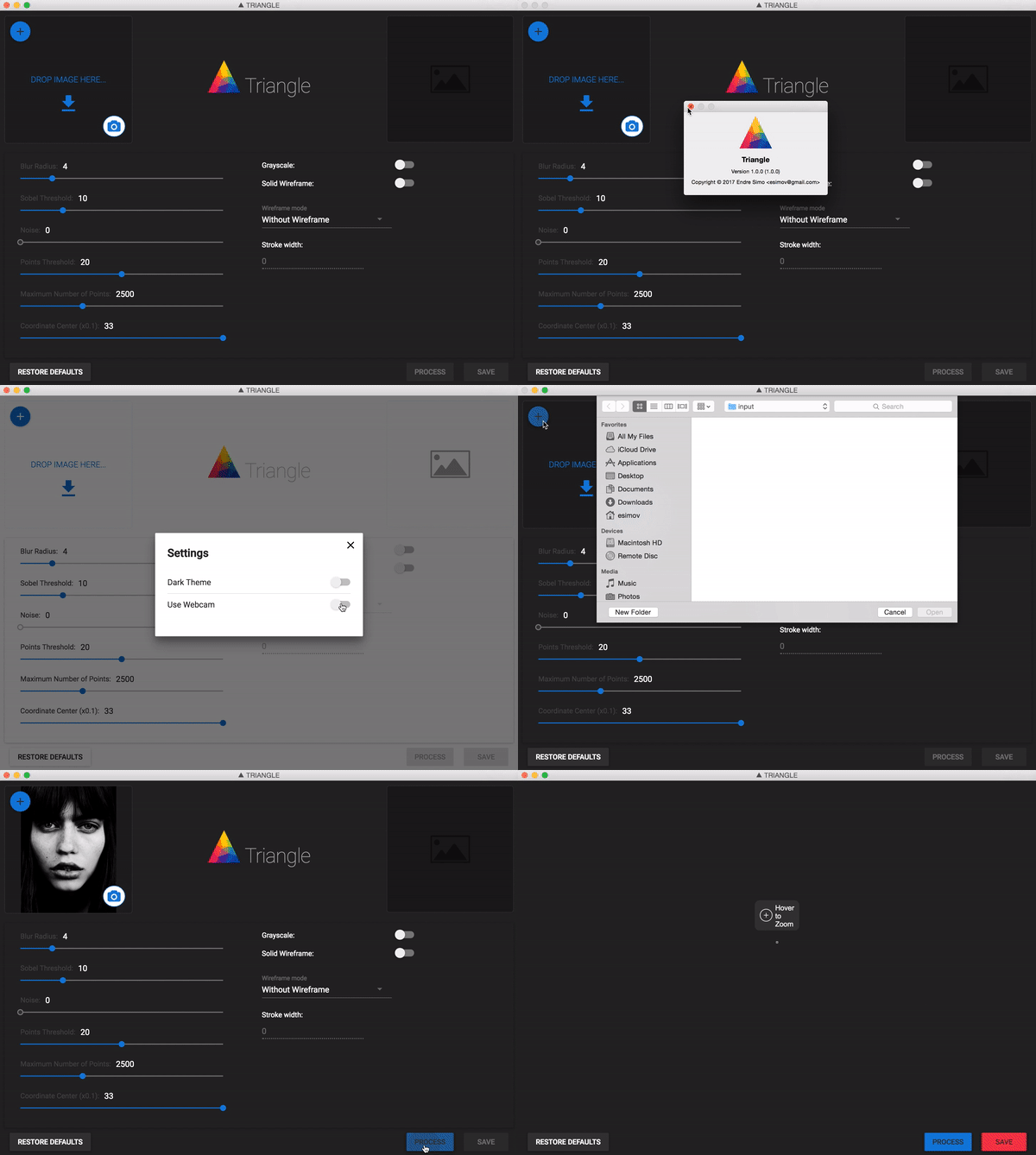
    I have also created an Electron/React desktop application for everyone who do not want to be bothered with the terminal commands and needs something more user friendly.

    The source file can also be found on my Github account:
    https://github.com/esimov/triangle-app
  • ASCII terminal mandelbrot fractal renderer in Go

    ASCII terminal mandelbrot fractal renderer in Go

    After the previous post about the mandelbrot renderer written in Go, this article will be related to the same topic, only this time i’ll talk about a terminal based Julia set generator written again in Go language. In fact i’ve done this experiment prior to write the mandelbrot renderer. About the implementation I’ve discussed in the last article.

    The whole idea came from the motivation to create something which resembles the feeling which only a terminal based application can create (something which is close enough to the pixelart technique), but at the same time it has enough visually appealing characteristics and above all it’s dynamic.

    Into the terminal fractals

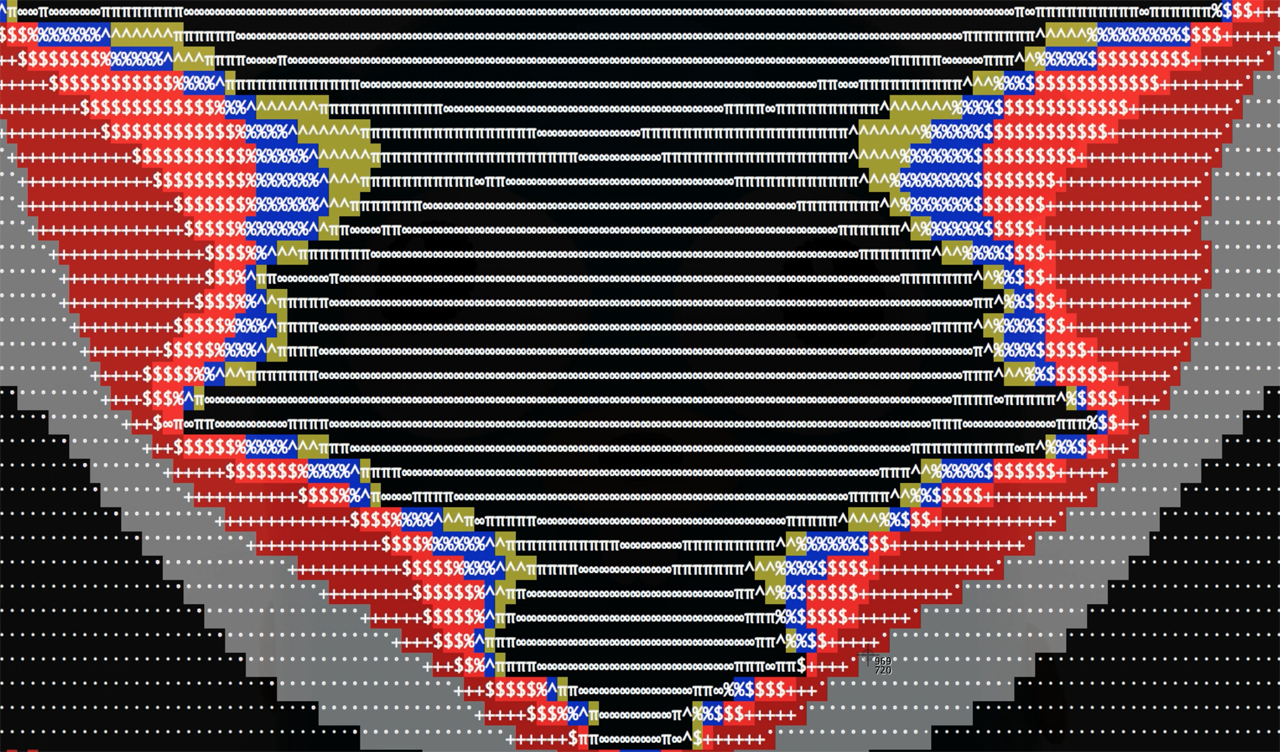
    (In preview the ASCII Mandelbrot generator running in terminal)

    Because in the last few months i was pretty much delved into the fractals, i’ve started to create some small experiments, one of them being the code snippet below:

    https://gist.github.com/esimov/970a3816dda12e4059e3.js

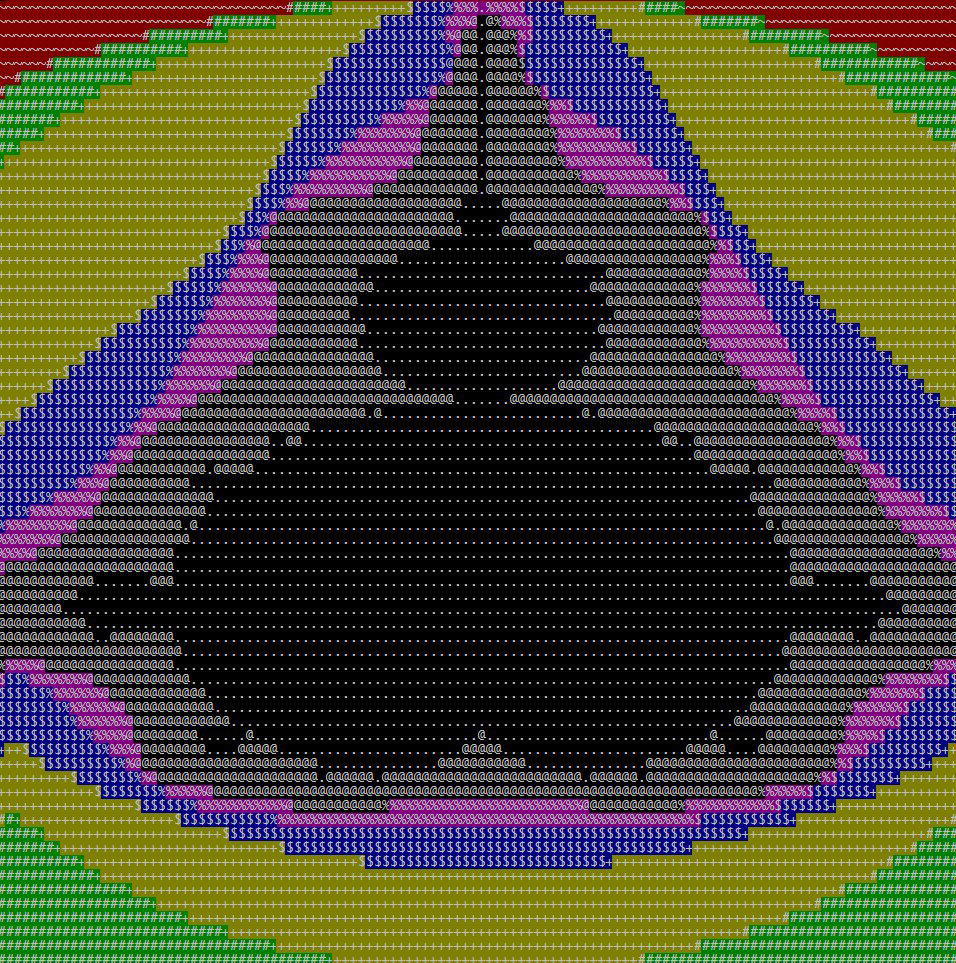
    Which produce the following terminal output:

    mandelbrot

    This was nice but i wanted to be dynamic, and not something simply put in the terminal window. So i’ve started to search for methods to refresh the terminal window periodically, ideally to refresh on each mandelbrot iteration. For this reason i’ve created some utility methods to get the terminal window width and height. And another method to flush the screen buffer periodically.

    
    // Get console width
    func Width() int {
    	ws, err := getWinsize()
    
    	if err != nil {
    		return -1
    	}
    
    	return int(ws.Row)
    }
    
    // Get console height
    func Height() int {
    	ws, err := getWinsize()
    	if err != nil {
    		return -1
    	}
    	return int(ws.Col)
    }
    
    // Flush buffer and ensure that it will not overflow screen
    func Flush() {
    	for idx, str := range strings.Split(Screen.String(), "\n") {
    		if idx > Height() {
    			return
    		}
    
    		output.WriteString(str + "\n")
    	}
    
    	output.Flush()
    	Screen.Reset()
    }
    

    It was missing another ingredient: in terminal based application we need somehow to specify the cursor position where to output the desired character, some kind of pointer to a position specified by width and height coordinate. For this i’ve created another method which move the cursor to the desired place, defined by x and y:

    // Move cursor to given position
    func MoveCursor(x int, y int) {
    	fmt.Fprintf(Screen, "\033[%d;%dH", x, y)
    }

    Then we can clear the screen buffer periodically. In linux based systems to move the cursor to a specific place in terminal window we can use ANSI escape codes, like: \033[%d;%dH, where %d;%d we can replace with values obtained from the mandelbrot renderer. In the example provided in the project github repo i’m moving the terminal window cursor to the mandelbrot x and y position, after which i’m clearing the screen.

    To make it more attractive i used a cheap trick to zoom in and out into the fractal and to smoothly displace the fractal position by applying sine and cosine function on x and y coordinate.

    for {
    	n += 0.045
    	zoom += 0.04 * math.Sin(n)
    	asciibrot.DrawFractal(zoom, math.Cos(n), math.Sin(n)/zoom*0.02, math.Sin(n), MAX_IT, true, isColor) //where math.Cos(n) and math.Sin(n) are x and y coordinates	
    }

    But there is another issue. We need to handle differently the code responsible to obtain the terminal window size in different operating systems. In linux and darwin based operating systems here is how we can get the terminal size:

    func getWinsize() (*winsize, error) {
    	ws := new(winsize)
    
    	var _TIOCGWINSZ int64
    
    	switch runtime.GOOS {
    	case "linux":
    		_TIOCGWINSZ = 0x5413
    	case "darwin":
    		_TIOCGWINSZ = 1074295912
    	}
    
    	r1, _, errno := syscall.Syscall(syscall.SYS_IOCTL,
    		uintptr(syscall.Stdin),
    		uintptr(_TIOCGWINSZ),
    		uintptr(unsafe.Pointer(ws)),
    	)
    
    	if int(r1) == -1 {
    		fmt.Println("Error:", os.NewSyscallError("GetWinsize", errno))
    		return nil, os.NewSyscallError("GetWinsize", errno)
    	}
    	return ws, nil
    }
    

    In Windows operating system to obtain the terminal dimension is a little bit different:

    
    type (
    	coord struct {
    		x int16
    		y int16
    	}
    
    	consoleScreenBufferInfo struct {
    		size              coord
    		cursorPosition    coord
    		maximumWindowSize coord
    	}
    )
    // ...
    func getWinSize() (width, height int, err error) {
    	var info consoleScreenBufferInfo
    	r0, _, e1 := syscall.Syscall(procGetConsoleScreenBufferInfo.Addr(), 2, uintptr(out), uintptr(unsafe.Pointer(&info)), 0)
    	if int(r0) == 0 {
    		if e1 != 0 {
    			err = error(e1)
    		} else {
    			err = syscall.EINVAL
    		}
    	}
    	return int(info.size.x), int(info.size.y), nil
    }
    

    One last step remained: to clear the screen buffer on CTRL-C signal, in another words to clear the screen on control break. For this i’ve created a channel and when the CTRL-C was pressed i signaled this event and on a separate goroutine i was listening for this event, meaning i could break the operation.

    
    // On CTRL+C restore default terminal foreground and background color
    go func() {
    	<-c
    	fmt.Fprint(asciibrot.Screen, "%s%s", "\x1b[49m", "\x1b[39m")
    	fmt.Fprint(asciibrot.Screen, "\033[2J")
    	asciibrot.Flush()
    	os.Exit(1)
    }()
    

    Usage

    In big that’s all. You can grab the code by running the following command:


    go get github.com/esimov/asciibrot

    To run it type:


    go run julia.go --help

    You can run the example in monochrome or color version. For the color version use --color or -c. For monochrome version use --mono or -m.

    You can build the binary version with: go build github.com/esimov/asciibrot.

    I’ve created a github repo for this experiment, which you can get it here: https://github.com/esimov/asciibrot

  • Mandelbrot renderer in Go

    Mandelbrot renderer in Go

    Lately i’ve been playing around a lot with the Go language, and wanted to put it something together which is somehow related to the graphics part of the language. Mandelbrot image set generator was a well suited candidate for this task, because of the calculation complexity and the iteration count used to generate the fractal image, Go being a language capable to communicate and share different pools of resources via channels and goroutines.

    The goroutine is used when i’m iterating over the two dimensional array, defined as a 2d system coordinate and applying the mathematical calculation prior to generate the mandelbrot set. The mandelbrot set is generated by applying a mathematical function to each complex number projected in the complex plane and determining for each whether they are bounded or escapes towards infinity.

    The mandelbrot is defined by the following formula: z_{n+1} = z_n^2 + c.. For example, letting c = 1 gives the sequence 0, 1, 2, 5, 26,…, which tends to infinity. As this sequence is unbounded, 1 is not an element of the Mandelbrot set. On the other hand, c = -1 gives the sequence 0, -1, 0, -1, 0,…, which is bounded, and so -1 belongs to the Mandelbrot set.

    
    for iy := 0; iy < height; iy++ {
    	waitGroup.Add(1)
    	go func(iy int) {
    		defer waitGroup.Done()
    
    		for ix := 0; ix < width; ix++ {
    			var x float64 = xmin + (xmax-xmin)*float64(ix)/float64(width-1)
    			var y float64 = ymin + (ymax-ymin)*float64(iy)/float64(height-1)
    			norm, it := mandelIteration(x, y, maxIteration)
    			iteration := float64(maxIteration-it) + math.Log(norm)
    			
    			if (int(math.Abs(iteration)) < len(colors)-1) {
    				color1 := colors[int(math.Abs(iteration))]
    				color2 := colors[int(math.Abs(iteration))+1]
    				color := linearInterpolation(RGBAToUint(color1), RGBAToUint(color2), uint32(iteration))
    
    				image.Set(ix, iy, Uint32ToRGBA(color))
    			}
    		}
    	}(iy)
    }


    After applying the mathematical function to the same point projected in the complex plane infinite number of times we can check if its bounded or escapes towards infinity. If it’s bounded the iteration is restarted again.

    The mandelbrot function translated into Go code is looking like this:

    
    func mandelIteration(cx, cy float64, maxIter int) (float64, int) {
    	var x, y, xx, yy float64 = 0.0, 0.0, 0.0, 0.0
    
    	for i := 0; i < maxIter; i++ { xy := x * y xx = x * x yy = y * y if xx+yy > 4 {
    			return xx + yy, i
    		}
    		x = xx - yy + cx
    		y = 2*xy + cy
    	}
    
    	log_zn := (x*x + y*y) / 2
    	return log_zn, maxIter
    }
    

    Treating the real and imaginary parts of each number as image coordinates, pixels are colored according to how rapidly the sequence diverges, if at all. For smooth color interpolation i’ve used Paul Burke’s cosine interpolation algorithm:

    
    func cosineInterpolation(c1, c2, mu float64) float64 {
    	mu2 := (1 - math.Cos(mu*math.Pi)) / 2.0
    	return c1*(1-mu2) + c2*mu2
    }
    

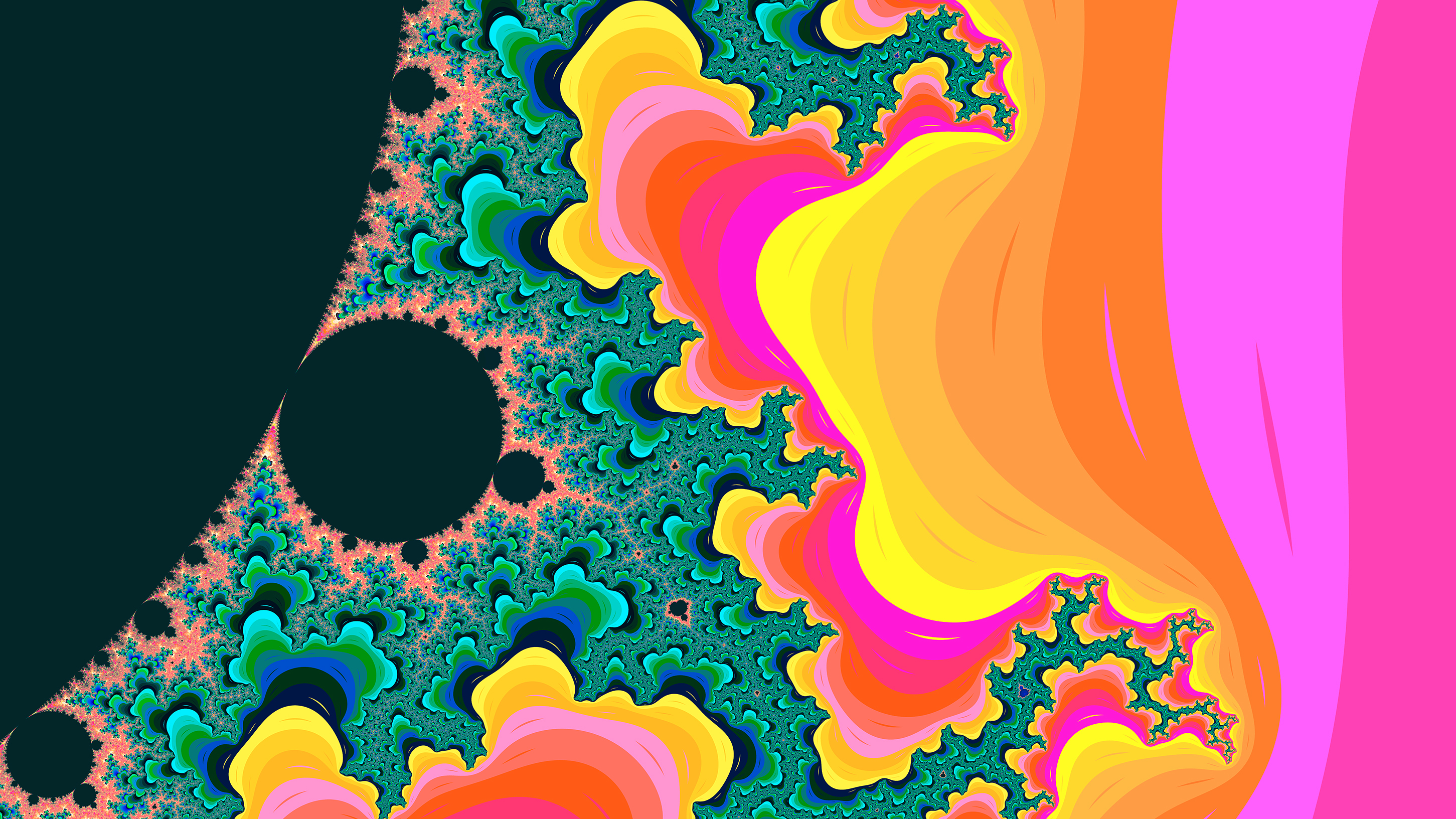
    The larger and scattered the color palette used the more intense and vivid the generated mandelbrot image is. By combining the following flag values: -step, -palette and -iteration you can obtain differently colorized mandelbrot sets, like in the screenshot below:

    mandelbrot_sample

    Because the rendering process could take some time, depending on the image resolution, the image smoothness and the iteration count, i thought that it would be a good idea to visualize the background process in terminal. For this purpose a good option was to use a different channel and signaling a tick on specified intervals. time.Tick is at rescue! On another channel i’m processing the image and when the rendering has been finished i’m sending a done signal to main goroutine, telling that the rendering process has been finished, which means i could stop the background indicator process.

    
    done := make(chan struct{})
    ticker := time.NewTicker(time.Millisecond * 100)
    
    go func() {
    	for {
    		select {
    		case <-ticker.C:
    			fmt.Print(".")
    		case <-done:
    			ticker.Stop()
    			fmt.Print("Done!")
    			fmt.Printf("\n\nMandelbrot set rendered into `%s`\n", outputFile)
    		}
    	}
    }()
    

    Install

    go get github.com/esimov/gobrot

    Before to run the code you need to include the project into the GOPATH environment variable. See the documentation: https://golang.org/doc/code.html#GOPATH

    Run

    go run mandelbrot.go –help

    Will give all the options supported by the renderer at the moment.

    Here are some options you can try out. (The attached images are generated using the below commands.)

    – go run mandelbrot.go -palette “Hippi” -xpos -0.0091275 -ypos 0.7899912 -radius .01401245 -file “test1.png”

    – go run mandelbrot.go -palette “Plan9” -xpos -0.0091275 -ypos 0.7899912 -radius .01401245 -file “test2.png” -iteration 600 -step 600

    – go run mandelbrot.go -palette “Hippi” -xpos -0.00275 -ypos 0.78912 -radius .1256789 -file “test3.png” -iteration 800 -step 6000 -smoothness 10 -width 1920 -height 1080

    TODO

  • Perlin noise based Minecraft rendering experiment

    Perlin noise based Minecraft rendering experiment

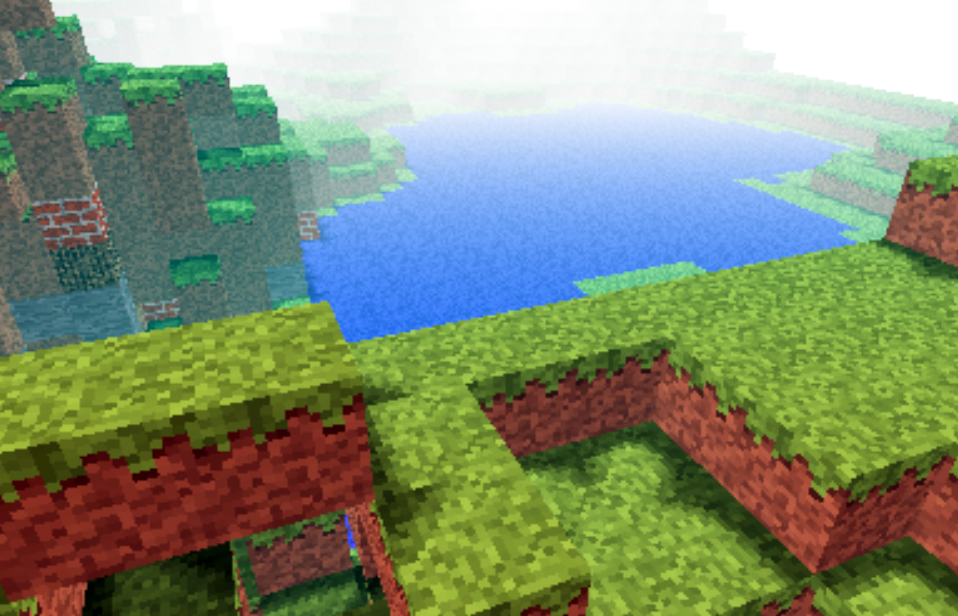
    Recently i was involved in a few different commercial projects, was toying with Golang, the shiny new language from Google and made some small snippets to test the language capability (i put them in my gist repository). In conclusion i somehow completely missed the creative coding. I had a few ideas and conceptions which i wanted to realize at an earlier or later stage. One of them was to adapt Notch minecraft renderer to be used in combination with perlin or simplex noise for generating random rendering maps.

    minecraft

    For that reason i ported to Javascript the original perlin noise algorithm written in Java. You can find the code here: https://gist.github.com/esimov/586a439f53f62f67083e. I won’t go into much details of how the perlin noise algorithm is working, if you are interested you can find a well explained paper here: http://webstaff.itn.liu.se/~stegu/simplexnoise/simplexnoise.pdf.

    As a starting point I put together a small experiment creating randomly generated perlin noise maps, and testing the granularity and dispersion of randomly selected seeding points to see how much they can be customized to create different noise patterns. I’m honest, actually these maps are not 100% randomly distributed, although they can be randomly seeded too, but for our scope I used a pretty neat algorithm for uniform granularity:

    
    // Seeded random number generator
    function seed(x) {
        x = (x<<13) ^ x;
        return ( 1.0 - ( (x * (x * x * 15731 + 789221) + 1376312589) & 0x7fffffff) / 1073741824.0);
    }
    

    And here is the working example:

    See the Pen Perlin metaball by Endre Simo (@esimov) on CodePen.

    The question that may arise: why should we need the perlin noise “thing” to generate different minecraft styled procedural terrain map? By generating randomly distributed noise we can further adjust the color mapping, then extract some of the areas above or below to certain values, which at a later state we can combine or even integrate into the core map generation logic. If you look at the alchemy behind the code responsible for programatically generating the terrain blocks, you will soon realize that we have all the ingredients (by manipulating some pixels here and there) to integrate the noise map into the block generation algorithm.

    In InitMap function we populate the map array with some initial values, then at a later stage after we generate the noise map, we extract the data as follows:

    
    for (var cell = 0; cell < pixels.length; cell += 4) {
        var ii = Math.floor(cell/4);
        var x = ii % canvasWidth;
        var y = Math.floor(ii / canvasWidth);
        var xx = 123 + x * .02;
        var yy = 324 + y * .02;
        
        var value = Math.floor((perlin.noise(xx,yy,1))*256);              
        pixels[cell] = pixels[cell + 1] = pixels[cell + 2] = value;
        pixels[cell + 3] = 255; // alpha.
    }
    

    then we go through the pixels data, setting up the condition on which data should be processed. In our actual case if the pixel color extracted is below to some certain value (this values are actually values extracted from the perlin noise map) then we set the map data to 0. This is why the perlin noise seed granularity is important. As smoother the transition between points is, as subtle would be the map generated.

    
    if ((pixelCol & 0xff * 0.48) < (64 - y) << 2) {
        map[i] = 0;
    }
    

    This is the basic logic for generating random minecraft terrain. We can even adjust the seed offset in perlin noise script to generate different patterns, however in my experiment seems that this doesn’t matter to much.

    The rendering engine is based on notch code, however i made some optimization adding some fake shadows and distance fog, creating a more ambiental environment.

    This is the code which creates the distance fog effect:

    
    var r = ((col >> 16) & 0xff) * br * ddist / (255 * 255);
    var g = ((col >> 8) & 0xff) * br * ddist / (255 * 255);
    var b = ((col) & 0xff) * br * ddist / (255 * 255);
    
    if(ddist <= 155) r += 155-ddist;
    if(ddist <= 255) g += 255-ddist;
    if(ddist <= 255) b += 255-ddist;  
    
    pixels[(x + y * w) * 4 + 0] = r;
    pixels[(x + y * w) * 4 + 1] = g;
    pixels[(x + y * w) * 4 + 2] = b;
    

    Playing with values i discovered that actually i can “move the camera around the scene” (actually here we have a fictive camera, meaning that not the camera is moving around scene, but the objects are projected around some fictive coordinates), so it was quite easy to get the mouse position and adjust the camera relative to the mouse position, this way including some user interaction into the scene.

    Version 2

    Even tough the desired effect pretty much satisfied my expectations, something was really missing from the original version: it was not possible to generate randomly seeded terrain maps and also the generated map was pretty much the same. So I have extended the first version with random map generation, replaced the Perlin noise generator with the simplex noise, added fake shadow and fog to give the feeling of depth and on top of these i have also included a control panel to play with the values. This is how it came out:

    The source code can be found on my Github page:

    https://github.com/esimov/minecraft.js

  • Navier Stokes Fluid Simulation on HTML5 Canvas

    Navier Stokes Fluid Simulation on HTML5 Canvas

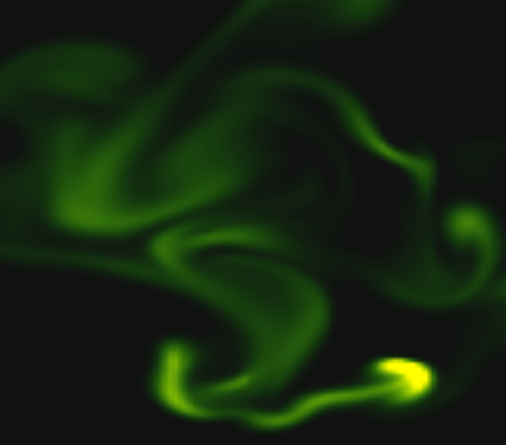
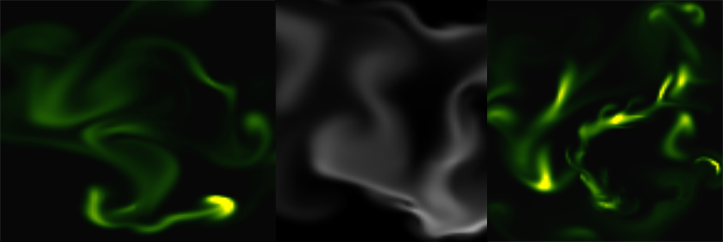
    Implementing real time fluid simulation in pure Javascript was a long desire of me and has been sitting in my todo list from a long time on. However from various reasons i never found enough time to start working on it. I know it’s nothing new and there are quite a few implementations done on canvas already (maybe the best known is this: http://nerget.com/fluidSim/), but i wanted to do mine without to relay to others work and to use the core logic as found on the original paper.

    For me one of the most inspiring real-time 2D fluid simulations based on Navier Stokes equations was that created by Memo Akten, originally implemented in Processing (a Java based programming language, very suitable for digital artists for visual experimentation), lately ported to OpenFrameworks (a C++ framework) then implemented in AS 3.0 by Eugene Zatepyakin http://blog.inspirit.ru/?p=248.

    The code is based on Jos Stam’s famous paper – Real-Time Fluid Dynamics for Games, but another useful resource which i found during preparation and development was a paper from Mike Ash: Fluid Simulation for Dummies. As the title suggest, the concept is explained very clearly even if the equations behind are quite complex, which means without a good background in physics and differential equations it’s difficult to understand. This does not means that i’m a little genius in maths or physics :). In this post i will sketch briefly some of the main concepts behind the theory and more importantly how can be implemented in Javascript. As a side note, this simulation does not take advantages of the GPU power, so it’s not running on WebGL. For a WebGL implementation see http://www.ibiblio.org/e-notes/webgl/gpu/fluid.htm.

    fluid-solvers

    The basic concept

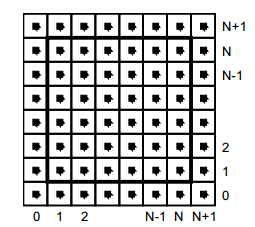
    We can think of fluids as a collection of cells or boxes (in 3D), each one interacting with it’s neighbor. Each cell has some basic properties like velocity and density and the transformation taking place in one cell is affecting the properties of neighbor cells (all of these happening million times per second).
    fluid-cells

    Being such a complex operation, computers (even the most powerful ones) can not simulate real time the fluid dynamics. For this we need to make some compromise. We’ll break the fluid up into a reasonable number of cells and try to do several interactions per second. That’s what Jos Stam’s approaching is doing great: sacrifice the fluid accuracy for a better visual presentation, more suitable for running real time. The best way to improve the simulation fluency is to reduce the solver iteration number. We’ll talk about this a little bit later.

    First we are staring by initializing some basic properties like the number of cells, the length of the timestamp, the amount of diffusion and viscosity etc. Also we need a density array and a velocity array and for each of them we set up a temporary array to switch the values between the new and old ones. This way we can store the old values while computing the new ones. Once we are done with the iteration we need to reset all the values to the default ones. For efficiency purposes we’ll use single dimensional array over double ones.

    The first step is to add some density to our cells:

    function addDensitySource(x, x0) {                
    	var size = self.numCells;        
    	while(size-- > -1) {
    		x[size] += _dt * x0[size];
    	}
    }

    then to add some velocity:

    FSolver.prototype.addCellVelocity = function() {
    	var size = self.numCells;
    	while(size-- > -1) {
    		if (isNaN(self.u[size])) continue;
    		self.u[size] += _dt * self.uOld[size];
    		if (isNaN(self.v[size])) continue;
    		self.v[size] += _dt * self.vOld[size];
    	}
    }

    Because some of the functions needs to be accessible only from main script i separated the internal (private) functions from the external (public) functions. But because Javascript is a prototypical language i used the object prototype method to extend it. That’s why some of the methods are declared with prototype and others as simple functions. However these aren’t accessible from the outside of FS namespace, which is declared as a global namespace. For this technique please see this great article Learning JavaScript Design Patterns.

    The process

    The basic structure of our solver is as follows. We start with some initial state for the velocity and the density and then update its values according to events happening in the environment.
    In our prototype we let the user apply forces and add density sources with the mouse (or we can extend this to touching devices too). There are many other possibilities this can be extended.

    Basically to simulate the fluid dynamics we need to familiarize our self with three main operations:

    Diffusion:

    Diffusion is the process when – in our case – the liquids doesn’t stay still, but are spreading out. Through diffusion each cell exchanges density with its direct neighbors. The array for the density is filled in from the user’s mouse movement. The cell’s density will decrease by losing density to its neighbors, but will also increase due to densities flowing in from the neighbors.

    Projection:

    This means the amount of fluid going in has to be exactly equal with the amount of fluid going out, otherwise may happens that the net inflow in some cells to be higher or lower than the net inflow of the neighbor cells. This may cause the simulation to react completely chaotic. This operation runs through all the cells and fixes them up to maintain in equilibrium.

    Advection:

    The key idea behind advection is that moving densities would be easy to solve if the density were modeled as a set of particles. In this case we would simply have to trace the particles though the velocity field. For example, we could pretend that each grid cell’s center is a particle and trace it through the velocity field. So advection in fact is a velocity applied to each grid cell. This is what makes things move.

    setBoundary():

    We assume that the fluid is contained in a box with solid walls: no flow should exit the walls. This simply means that the horizontal component of the velocity should be zero on the vertical walls, while the vertical component of the velocity should be zero on the horizontal walls. So in fact every velocity in the layer next to the outer layer is mirrored. The following code checks the boundaries of fluid cells.

    function setBoundary(bound, x) {
    	var dst1, dst2, src1, src2, i;
    	var step = FLUID_IX(0, 1) - FLUID_IX(0, 0);
    	dst1 = FLUID_IX(0, 1);
    	src1 = FLUID_IX(1, 1);
    	dst2 = FLUID_IX(_NX+1, 1);
    	src2 = FLUID_IX(_NX, 1);
    
    	if (wrap_x) {
    		src1 ^= src2;
    		src2 ^= src1;
    		src1 ^= src2;
    	}
    
    	if (bound == 1 && !wrap_x) {
    		for (i = _NY; i > 0; --i) {
    			x[dst1] = -x[src1]; dst1 += step; src1 += step;
    			x[dst2] = -x[src2]; dst2 += step; src2 += step;
    		}
    	} else {
    		for (i = _NY; i > 0; --i) {
    			x[dst1] = x[src1]; dst1 += step; src1 += step;
    			x[dst2] = x[src2]; dst2 += step; src2 += step;
    		}
    	}
    
    	dst1 = FLUID_IX(1, 0);
    	src1 = FLUID_IX(1, 1);
    	dst2 = FLUID_IX(1, _NY+1);
    	src2 = FLUID_IX(1, _NY);
    
    	if (wrap_y) {
    		src1 ^= src2;
    		src2 ^= src1;
    		src1 ^= src2;
    	}
    
    	if (bound == 2 && !wrap_y) {
    		for (i = _NX; i > 0 ; --i) {
    			x[dst1++] = -x[src1++];
    			x[dst2++] = -x[src2++];
    		}
    	} else {
    		for (i = _NX; i > 0; --i) {
    			x[dst1++] = x[src1++];
    			x[dst2++] = x[src2++];
    		}
    	}
    
    	x[FLUID_IX(0, 0)] = .5 * (x[FLUID_IX(1, 0)] + x[FLUID_IX(0, 1)]);
    	x[FLUID_IX(0, _NY+1)] = .5 * (x[FLUID_IX(1, _NY+1)] + x[FLUID_IX(0, _NY)]);
    	x[FLUID_IX(_NX+1, 0)] = .5 * (x[FLUID_IX(_NX, 0)] + x[FLUID_IX(_NX+1, _NX)]);
    	x[FLUID_IX(_NX+1, _NY+1)] = .5 * (x[FLUID_IX(_NX, _NY+1)] + x[FLUID_IX(_NX+1, _NY)]);
    }

    The main simulation function is implemented as follow:

    FSolver.prototype.updateDensity = function() {        
    	addDensitySource(this.density, this.densityOld);
    
    	if (_doVorticityConfinement) {            
    		calcVorticityConfinement(this.uOld, this.vOld);            
    	}
    
    	diffuse(0, this.densityOld, this.density, 0);
    	advect(0, this.density, this.densityOld, this.u, this.v);
    }
    
    FSolver.prototype.updateVelocity = function() {
    	this.addCellVelocity();
    	this.SWAP('uOld', 'u');
    	diffuse(1, this.u, this.uOld, _visc);
    	this.SWAP('vOld', 'v');        
    	diffuse(2, this.v, this.vOld, _visc);        
    	project(this.u, this.v, this.uOld, this.vOld);
    
    	this.SWAP('uOld', 'u');
    	this.SWAP('vOld', 'v');
    	advect(1, this.u, this.uOld, this.uOld, this.vOld);
    	advect(2, this.v, this.vOld, this.uOld, this.vOld);
    	project(this.u, this.v, this.uOld, this.vOld);
    }

    We are calling these functions on each frame on the main drawing method. For rendering the cells i used canvas putImageData() method which accepts as parameter an image data, whose values are in fact the fluid solver values obtained from the density array. My first attempt was to generate a particle field, associate to each particle density, velocity etc. (so all the data necessarily making a fluid simulation), connect each particle in a single linked list, knowing this is a much faster method for constructing an array, instead using the traditional one. Then using a fast and efficient method to trace a line, best known as Extremely Fast Line Algorithm or Xiaolin Wu’s line algorithm with anti aliasing (http://www.bytearray.org/?p=67) i thought i could gain more FPS for a smoother animation, but turned out being a very buggy implementation, so for the moment i abandoned the idea, but i will revised once i will have more time. Anyway i don’t swipe out this code part. You can find some utility functions too for my attempting, like implementing the AS3 Bitmap and BitmapData classes.

    And here is the monochrome version:
    www.esimov.com/experiments/javascript/fluid-solver-mono/

    The simulation is fully adapted to touch devices, but i think you need a really powerful device to run the fluid simulation decently.

    What’s next?

    That’s all. Hopefully this will be a solid base to explore further this field and add some extra functionality.

  • Worley noise cellular texturing

    Worley noise cellular texturing

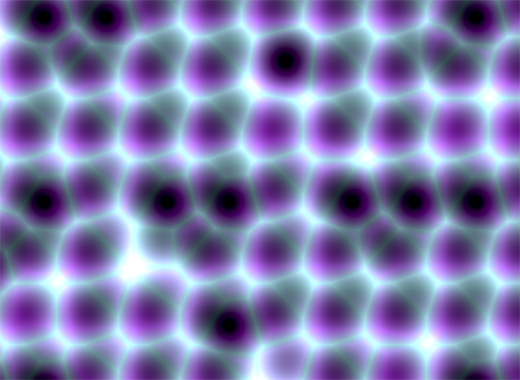
    There are some quite well known procedural content generation algorithms out there: Voronoi, Perlin noise, simplex noise, L-systems, reaction-diffusion systems like Turing pattern, which I’ve presented in my earlier blog post.The specifics of these algorithms are that either generates a large amount of content for a small investment of input data, or one that adds structure to random noise.

    Generally speaking they are categorized by what they generate (map vs sequence generation) and also by the mindset behind their use. This time we’ll discuss the Worley noise pattern, which can be included into the generative map creation category. This means we need a grid system for the representation and visualization of points scattered randomly in 3D or 2D space.

    In it’s visual appearance is almost like a Voronoi diagram, only it’s not as famous like it’s counterpart. Even Wikipedia discuss it very briefly. Worley noise in it’s essence is a noise generation pattern, which means by multiplication/addition of different octaves of the same noise pattern we can produce a variety and completely different outputs. This is the fun part of working with generative patterns.

    Now, after we gain a little theoretical introduction let’s get started with the basics, and try to dissect how can we reproduce those organic shapes and textures found in every living being in nature. (In parentheses being said, in many graphic simulations and parametric applications dealing with textural visualizations this shapes can be found). As a last side note before we go into the technical details, my intention was to implement the algorithm in Javascript mainly because i wished to be accessible by as many users as possible, and at the same time i was curious how far can i stress the limit of the modern web browsers. This is an experiment based 100% on CPU, so WebGL was out of scope, only because i was not playing with this technology until now, but i considering to implement on GPU in a shorter or longer future.

    Feature points

    The basic idea is to spread randomly varying number in space and calculate the distance to these point from every possible location of space. As a complement, Worley suggest to assign to each feature point an unique ID number. This number can be used to generate surface with colored areas or crocodile like textures, cityblock diagrams etc. depending on the algorithm, or coloring function implemented.

    The noise function simply computes a single value for every location in space. We can then use that value in literally thousands of interesting ways, such as perturbing an existing pattern spatially, mapping directly to a density or color or adding multiple scale of noise to make a fractal combination. While there are infinite number of possible functions which provide an infinite number of outputs, noise’s random behavior gives a much more interesting appearance  then simple gradients for example.

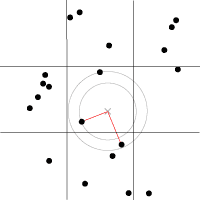
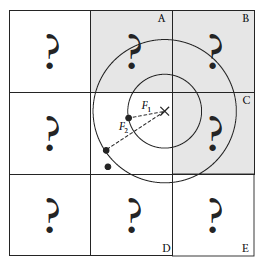
    By spreading  feature points randomly through the 3D space we build a scalar function based on the distribution of the points near the sample location. Because an image worth a thousand of words the picture below describes a space with feature points scattered across the plane.

    For a position on the plane (marked with x in the picture above) there is always a closest feature point, a second closest, a third and so on. The algorithm is searching for such feature points, return  their relative distance to the target point, their position and their unique ID number.

    Another key component of the algorithm is the demarcation line which is supposed to be integer in every plane. Each squares (cubes in 3D) are positioned so that their identification numbers can be expressed with some integer values. Let’s suppose we want to obtain the distance to the two feature point closest to the (3.6, 5.7) we start by looking at the integer squares (3, 5) and compare it’s feature points to each other.  It’s obvius that the two feature points in that square aren’t the two closest. One of them is, but the second closest belongs to the integer square (3, 6).

    It’s possible that some feature points are not inside the square where the target point is placed, in this case we extend our analysis to the adjacent squares. We could just test all 26 immediate neighboring cubes, but by checking the closest distance we’ve computed so far (our tentative n-th closest feature distance) we can throw out whole rows of cubes at once by deciding when no point in the neighbor cube could possibly contribute to our list. We don’t know yet what points are in the adjacent cubes marked by “?,” but if we examine a circle of radius F1, we can see that it’s possible that the cubes labeled A, B, and C might contribute a closer feature point, so we have to check them. As resulted from the image below, it’s mostly possible to check 6 facing neighbors of center cube (these are the closest and most likely to have a close feature point), 12 edge cube and 8 corner cubes in 3D. We could start testing more distant cubes, but it’s much more convenient to just use a high enough density to ensure that the central 27 are sufficient.

    The code implementation in Javascript

    For the code implementation i used html5 canvas. I’ve commented the source code, so won’t be too hard to follow for anyone. Because (as i mentioned in the beginning) my WebGL knowledge is quite minimal, for this reason i tried to optimize every single bit of code. For this reason my single option was to use web workers by separating the main core from the computationally heavy and intense pixel manipulation logic. There is a well described article on html5rocks.com about the basic principles of web workers, followed by some very neat examples regarding the implementation of them.

    The main advantage of using web workers is that we can eliminate the bottlenecks caused by computational heavy threads running in the background, separating the implementation interface from the computational logic. This way we can reduce the hangouts caused by intensive calculations which may block the UI or script to handle the user interaction.

    Creating a web worker is quite simple. We define the variables we want to pass to workers, and by calling an event listener using postMessage function we transfer the main tread instructions to the worker (which is running in a separate thread). Because web workers run in isolated threads, the code that they execute needs to be contained in a separate file. But before we do that, the first thing we have to do is create a new Worker object in our main page. The constructor takes the name of the worker script:

    In  a separate script we’ll define wich are the variables we want to listen for. This part is responsible for the heavy weight operations. After the pixel calculations has been done, we pass over the results through the postMessage method to the main thread. This part of code looks like the following:

    As a last option i’ve included the DAT.GUI lightweight graphical interface for a user interaction, where we can select different methods, colors etc. and lastly to offer the possibility for rendering with or without web workers.

    Hopefully you find interesting this experiment, and if you have some remarks, comments, then please use the comments field below, or share through twitter.